
Spotify Canvas not showing? Why, and how to get visuals for every track
Canvas is the short looping video that plays behind some songs in Spotify's Now Playing view. When it works, it makes a track feel alive. When it doesn't, you just get the cover. This guide explains why Canvas goes missing, how to bring it back, and what to do for the many tracks that never had one.
What Spotify Canvas is
A Canvas is a clip of a few seconds that an artist or label uploads for a track. Spotify loops it in the Now Playing view instead of the static cover. It is made in advance, like a tiny music video: it loops the same way during the verse and the chorus, and it doesn't react to the sound.
Why Canvas is not showing
- The track has no Canvas. This is the most common reason. Canvas is optional, and most songs don't have one, especially older releases and smaller artists. If Canvas shows on some tracks and not others, nothing is broken.
- Canvas is switched off. Spotify has a Canvas switch in its settings. Depending on the app version it sits under Playback or Content and display. Turn it on and play the track again.
- Data Saver is on. To save mobile data, Data Saver turns Canvas off. Switch Data Saver off, or check whether Canvas comes back on Wi-Fi.
- A slow connection. Canvas is a video, so it needs to download. On a weak connection Spotify shows the cover instead.
- An old app or a stale cache. Update Spotify. If Canvas is still missing on tracks you know have one, log out and back in, or clear the app's cache in its storage settings.
- The view you're in doesn't show it. Canvas plays in the Now Playing view. Where exactly that view appears differs between the phone app, the desktop app and the web player, and between app versions.
Canvas vs a music visualizer
Even when it works, Canvas has limits: it exists only for tracks whose artists made one, and it loops no matter what the music does. A music visualizer works the other way round. It listens to the sound that is playing right now and draws from it: the low, middle and high frequencies, the kick and the snare. So it works for every track, and a drop looks different from a quiet bridge.
Live visuals for every track in the Spotify web player
Deus is a free Chrome extension that adds a visualizer to open.spotify.com:
- Install Deus from the Chrome Web Store and pin it to the toolbar.
- Open open.spotify.com in Chrome and play anything: a track with Canvas, one without, a podcast.
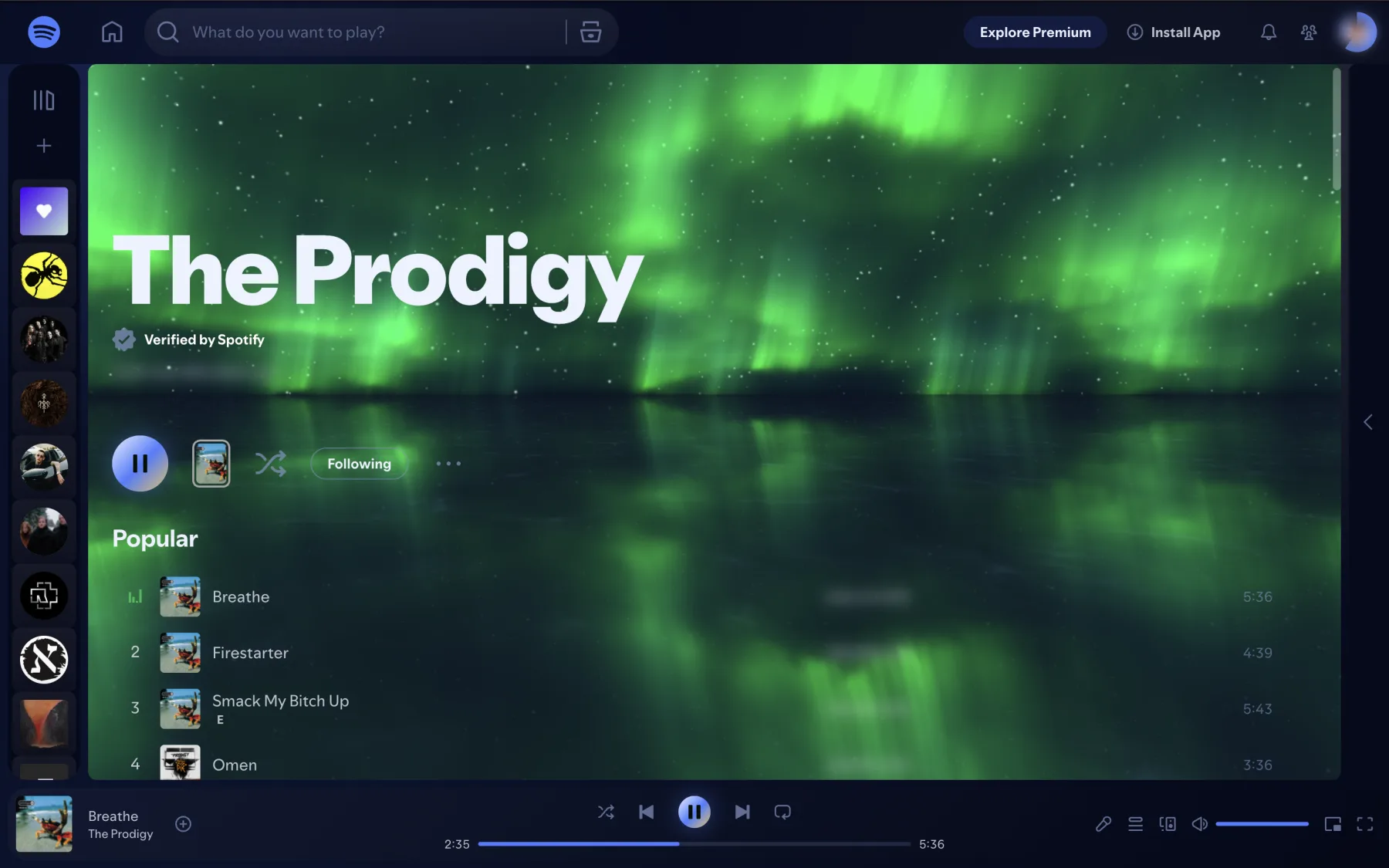
- Click the Deus icon on that tab. A live visual appears behind the Spotify page: on the home screen, behind playlists and in the artist header.
- Switch presets with ← and →, or press ⛶ in the popup to fill the screen.
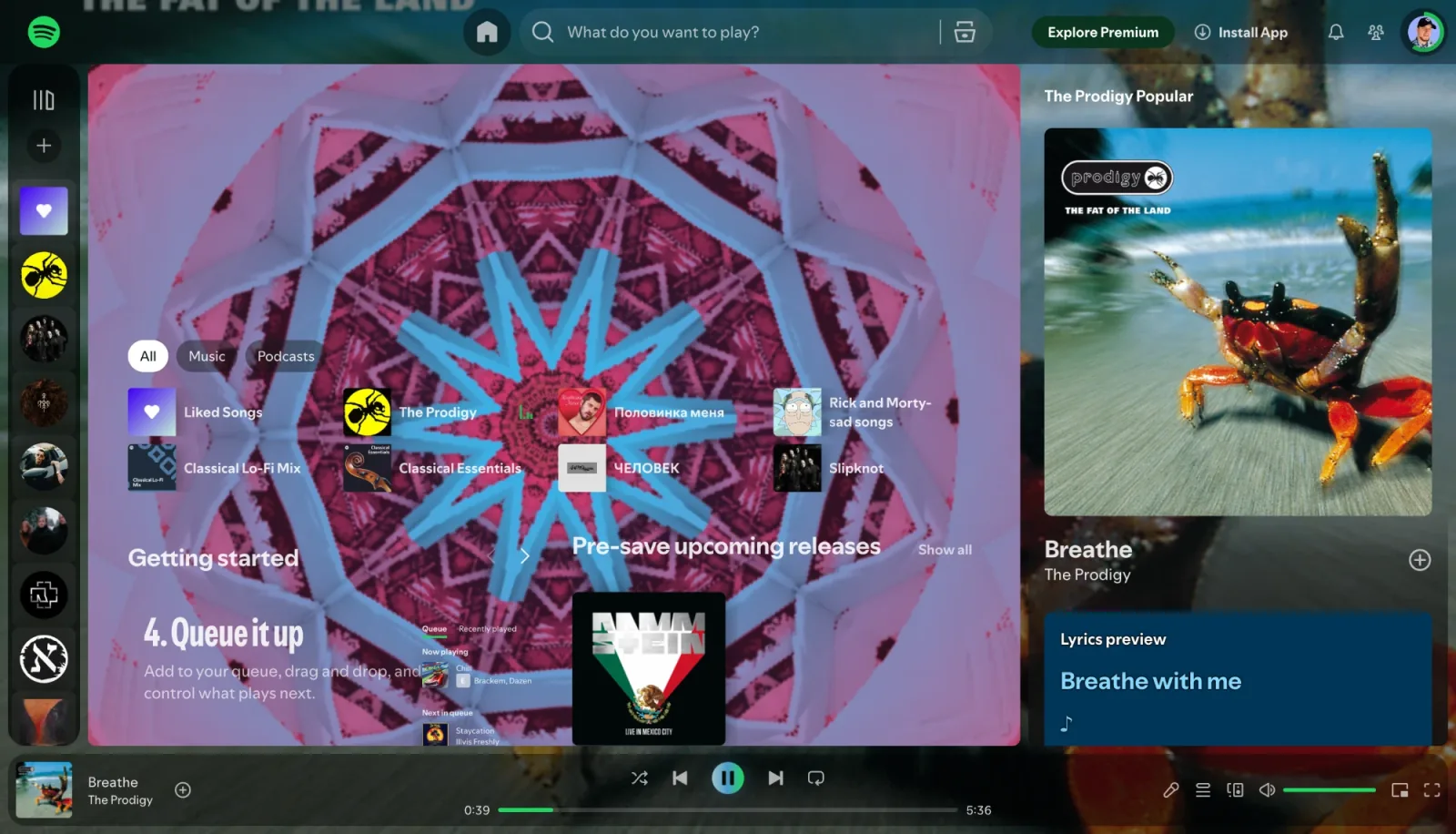
Deus has more than 1,100 presets, from shader tunnels to classic MilkDrop scenes, and a Magic mode that changes the preset, colours and filters by itself. It also has 71 themes that recolour the Spotify page itself; Chameleon builds the look from the album art of each track. All of it is free, with no account.
Questions
Can I make Canvas show for every song?
No. Only the artist or label can add a Canvas to a track. For songs without one, a visualizer is the way to get something moving on screen.
Does Deus change Canvas or my Spotify account?
No. Deus only reads the sound of the browser tab and draws over the page. It doesn't log in to Spotify and doesn't change anything in your account or app settings.
Does it work on my phone?
No. Deus is an extension for Chrome on a computer; Chrome on Android and iPhone doesn't run it. On the phone, Spotify's own Canvas is what you get.
Deus is an independent extension and is not affiliated with Spotify.