
Spotify light mode: is there one, and how to get it in Chrome
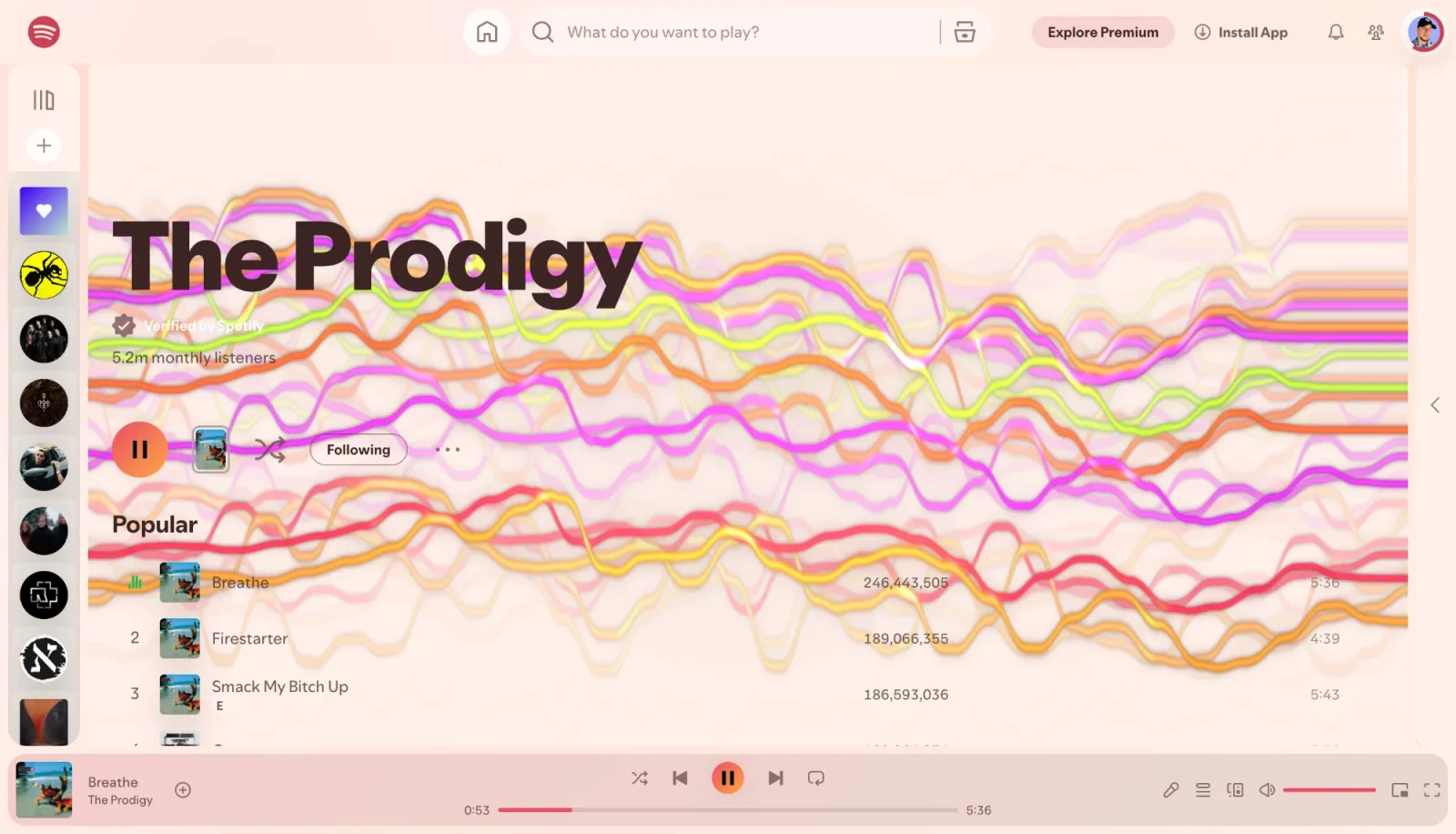
"Spotify light mode" is one of the most requested Spotify features, and for years the answer has been the same: Spotify comes in one look, dark grey and black with green accents. Some people find white text on black hard to read in a bright room, some just want a change. Here is what Spotify offers, what doesn't help, and how to get a real light Spotify in the browser.
Does Spotify have a light mode?
At the time of writing, no. The Spotify desktop app, the phone apps and the web player have no theme setting, and switching your computer or phone to light mode doesn't change them: Spotify stays dark. Spotify has never announced a light theme.
What doesn't work well
- Inverting colours in your system's accessibility settings flips everything on screen, so cover art and photos turn into negatives.
- Forcing a colour scheme in Chrome through experimental flags is meant for dark mode, not light, and affects every site.
- Modified Spotify clients for the desktop app patch Spotify's own files. That can break with any Spotify update and goes against Spotify's terms.
A light Spotify in the web player
The web player at open.spotify.com is a web page, and a browser extension may restyle a web page. That is how Deus, a free Chrome extension, gives Spotify a light theme: the background, the panels, the player bar and the text change colour, and everything else (search, your library, the queue, playback) works as usual.
- Install Deus from the Chrome Web Store and pin it to the toolbar.
- Open open.spotify.com and start a track.
- Click the Deus icon and press Themes at the top of the popup.
- Pick one of the light swatches. The page is restyled right away; hover over a swatch to see its name.
To go back to Spotify's own colours, pick No design.
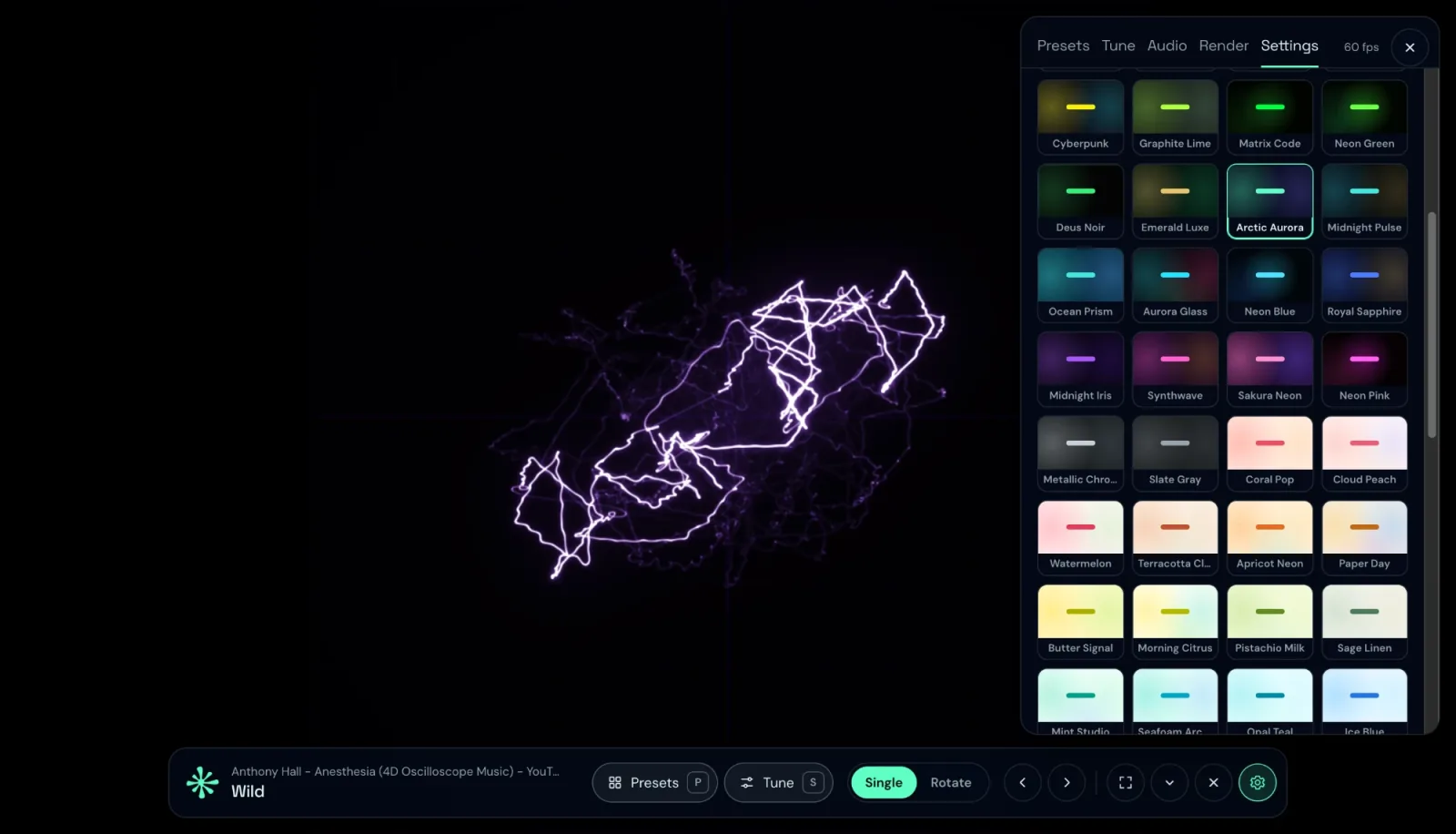
34 light themes to choose from
Deus has 71 themes: 34 light, 36 dark and Chameleon. The light ones put dark text on soft daylight colours:
- Paper Day and Porcelain Sky, for a calm, almost white page.
- Cloud Peach, Coral Pop and Pastel Dream, for warm pastels.
- Morning Citrus, Pistachio Milk and Mint Studio, for fresh yellows and greens.
Every theme card has 👍 and 👎, and the Popular sort puts the most liked ones first. If you can't pick one, star a few and turn on Rotate themes: Deus changes the theme on a timer, from every 5 seconds to every hour.
Chameleon: a different colour for every album
If neither light nor dark is quite right, try Chameleon. On Spotify it uses the cover of the playing track as the background of the whole window, blurred, with translucent panels on top. A pale cover gives you a light Spotify, a dark one a dark Spotify, and the look changes with each track. The Spotify themes guide shows more examples.
A visualizer comes with it
Deus is also a music visualizer. Behind the themed page, a live visual reacts to the music: on the home screen, behind playlists and in the artist header. Switch presets with ← and →, or read the Spotify visualizer guide for the details.
Questions
Is it free?
Yes. All 71 themes, light ones included, are free with no time limit and no account.
Does it work in the Spotify desktop app?
No. Desktop and phone apps don't load browser extensions, so the themes work in open.spotify.com in Chrome only. Your playlists and library are the same there.
Will the theme also apply to other sites?
The theme you pick applies everywhere Deus draws: YouTube Music, Yandex Music, SoundCloud, Deezer, Apple Music and the Deus player itself. It doesn't change other websites.
Deus is an independent extension and is not affiliated with Spotify.