
Spotify visualizer: how to get live visuals in the Spotify web player
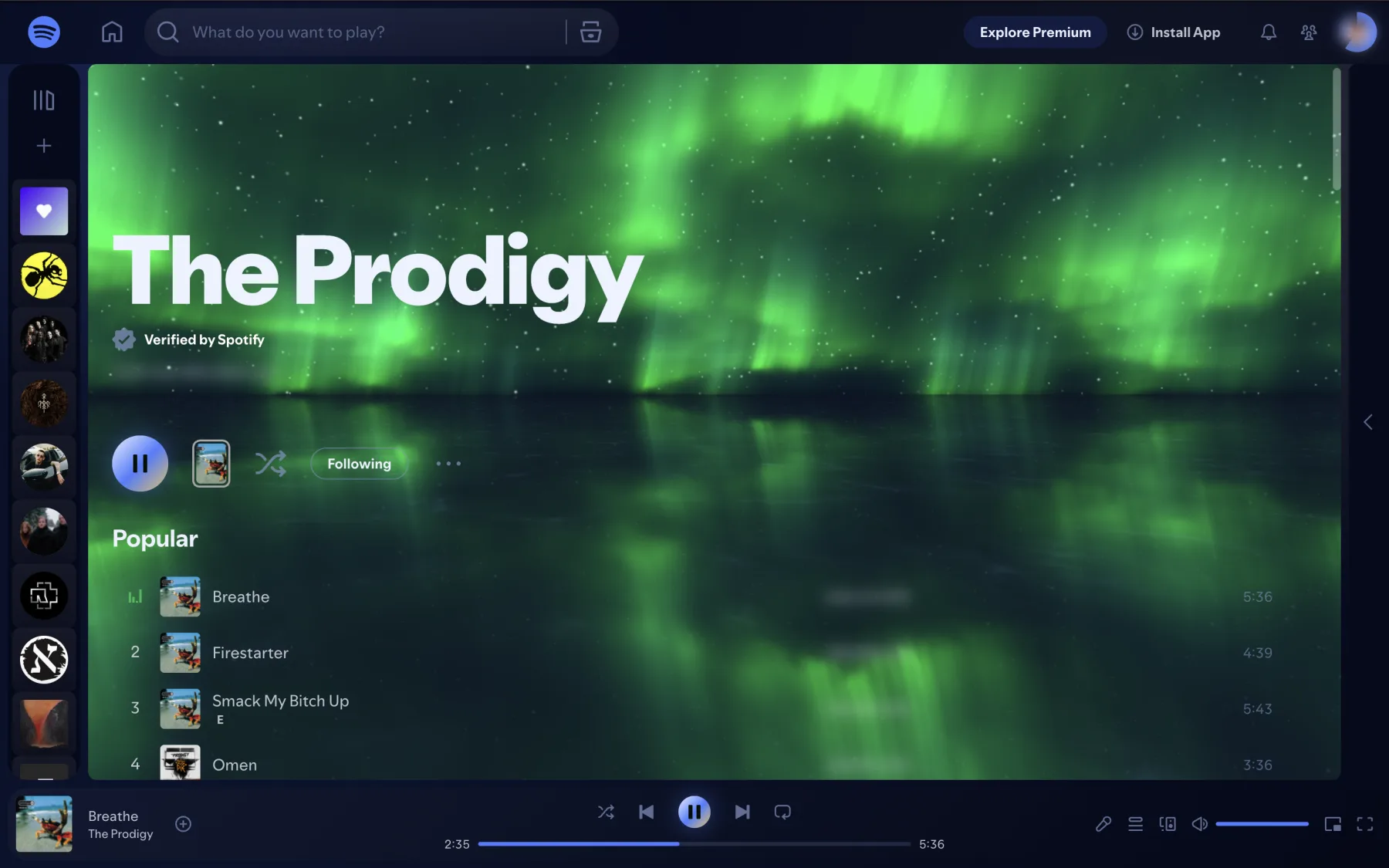
Spotify shows album art, lyrics and, for some tracks, a short looping video called Canvas. What it does not have is a real music visualizer: something that moves with the kick drum, the bass line and the vocals of whatever is playing. If you remember the bars and tunnels from Winamp or Windows Media Player, Spotify has nothing like them built in.
You can still get one. This guide shows the quickest way, in the Spotify web player in Chrome, and explains what does and doesn't work.
Why Spotify has no visualizer
Canvas videos are made by artists in advance. They loop no matter what the music does, so they are not a visualizer. A visualizer has to analyze the actual audio while it plays: how loud the low, middle and high frequencies are right now, where the beats land. The Spotify app does not offer that, and it does not let third-party code run inside it.
The web player is different. open.spotify.com runs in your browser, and a browser extension can listen to the sound of the tab and draw on the page. That is how Deus works.
How to add a visualizer to Spotify in Chrome
- Install Deus from the Chrome Web Store (free) and pin it to the toolbar.
- Open open.spotify.com and start a track.
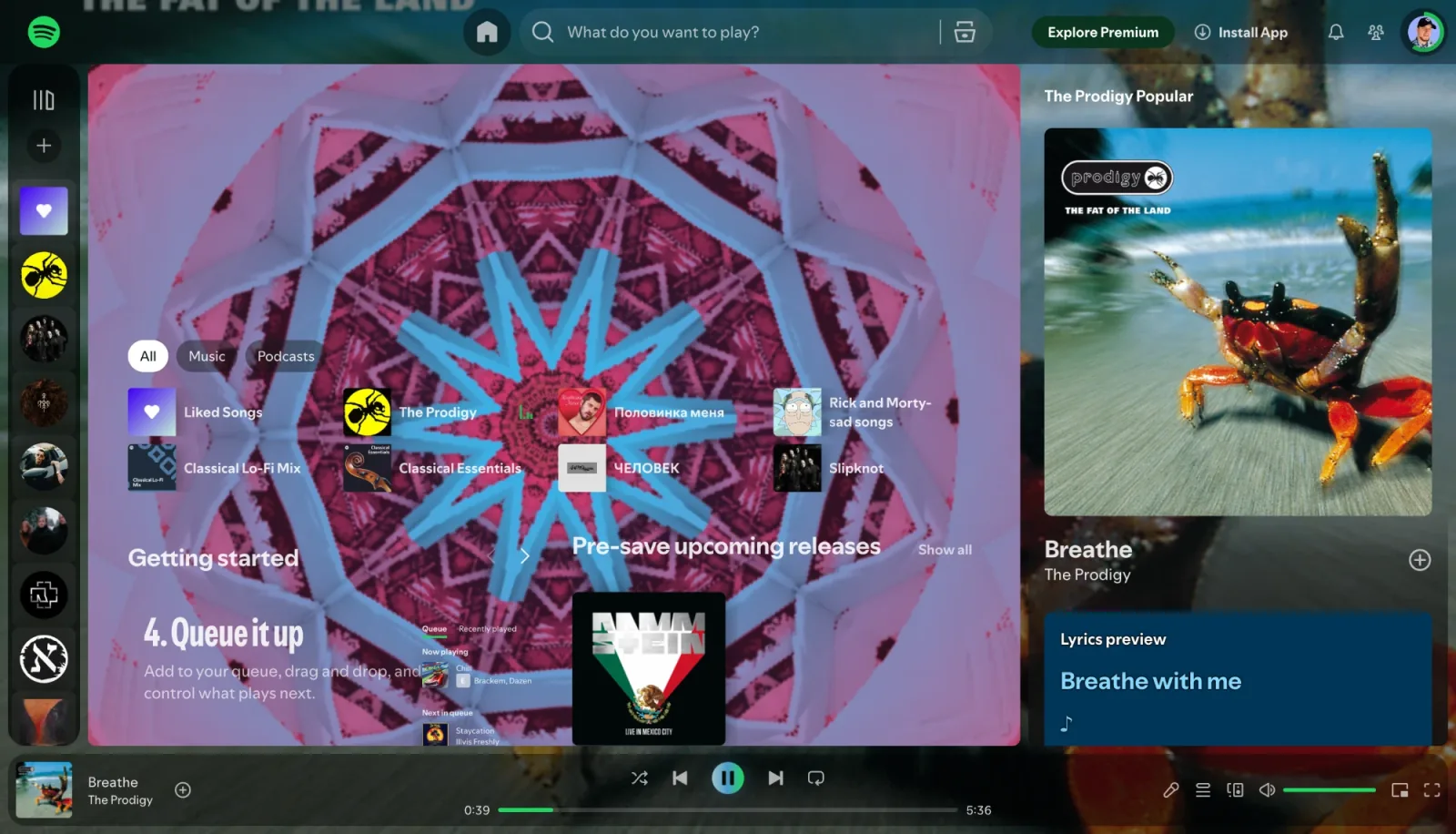
- Click the Deus icon and turn it on. A live visual appears behind the page: in the header of an artist page, behind the track list, on the home screen.
- Use ← and → on the page to switch presets, or pick one in the popup.
Spotify stays Spotify: search, your library, the queue and the player bar work as usual. Deus reads the tab's sound; it doesn't replace the player or touch your account.
What you get
- Visuals that follow the music. Every preset reacts to bass, mids and treble, and to kicks, snares and hi-hats separately, so a drop looks different from a quiet verse.
- 134 presets in four groups: WebGL shader scenes, clean Canvas 2D geometry, classic MilkDrop presets and an XY oscilloscope. They can rotate on a timer, with shuffle.
- 71 themes for the Spotify page itself. Light and dark ones recolour the background, panels and player bar. Chameleon builds the whole look from the current cover art, and on an artist page from the artist's header image.
- Fullscreen. The popup's classic Deus button opens the full visualizer in its own tab or window, which you can drag to a second screen or a TV.
Free or paid?
The Spotify visuals, all presets and all themes are free, with no time limit and no account. Deus Pro is a one-time purchase that adds extras like a floating picture-in-picture window and videos without a watermark; you don't need it for Spotify.
What doesn't work
- The Spotify desktop and mobile apps. Deus is a Chrome extension, so it works with the web player only. If you prefer the desktop app, play in the browser while you want visuals.
- Recording Spotify. Deus doesn't record or save streaming audio. If you want a visualizer video, it renders one from an audio file you own.
Other players
The same built-in visuals work in YouTube Music, Yandex Music, SoundCloud, Deezer and Apple Music. For anything else, such as a web radio or a Twitch stream, use the any-tab visualizer.
Deus is an independent extension and is not affiliated with Spotify.