
How to make a music visualizer video for YouTube for free
Musicians, DJs and channel owners all hit the same problem: a track needs a video to live on YouTube, and a still cover image looks dead. A visualizer video, where the picture moves with the music, is the classic answer. Most tools for it are either desktop editors with a learning curve, or online makers that put your song through a slow upload and charge for 1080p.
Here is a way to render one in your browser, from your own audio file, without uploading the track anywhere.
What you need
- Desktop Chrome.
- Deus, a free Chrome extension.
- An audio file you have the right to use, such as your own track or a licensed beat.
Step by step
- Install Deus and open the visualizer: click the Deus icon and choose Visualize this tab on any tab, or open the full visualizer from the popup.
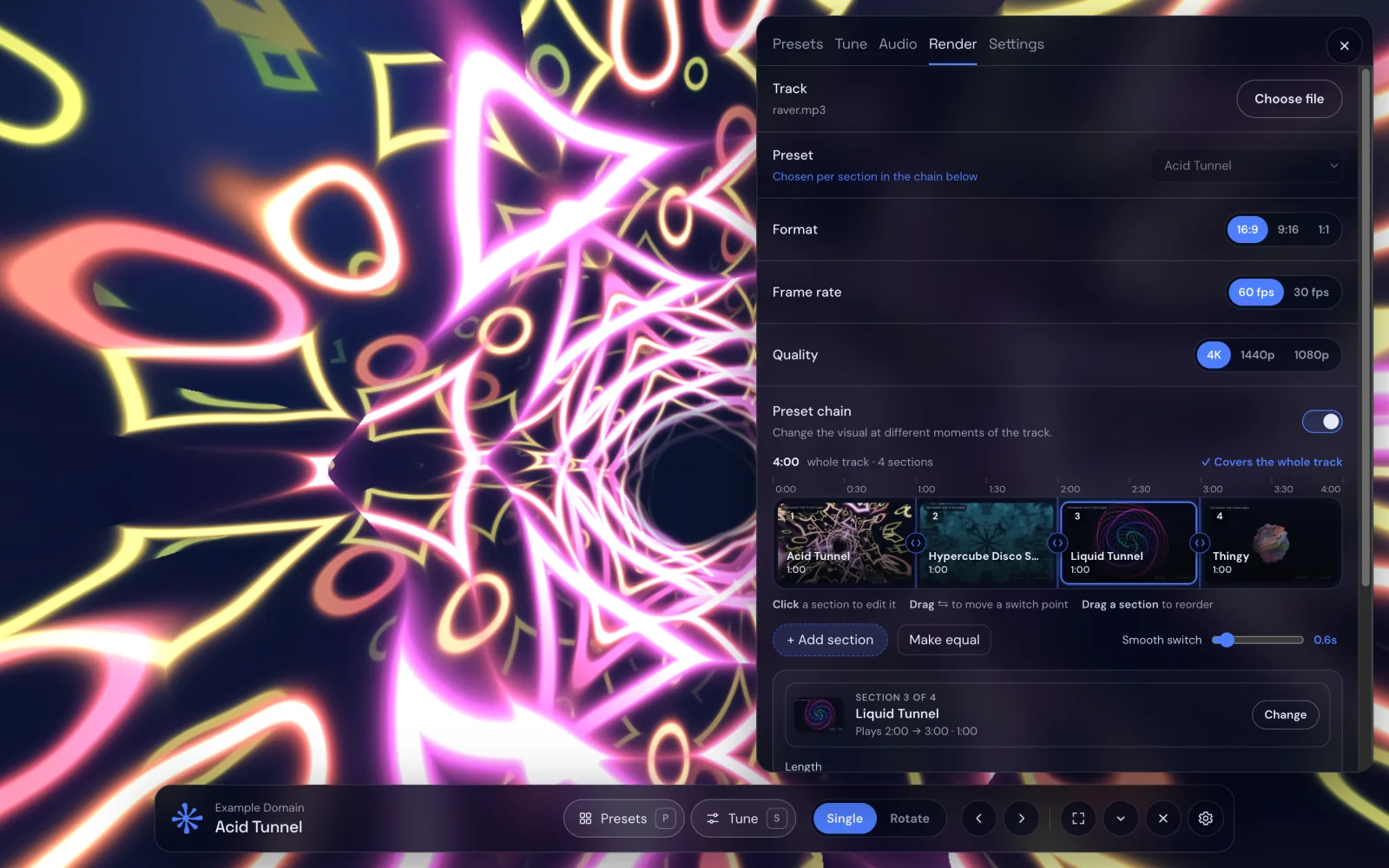
- Open Render from the visualizer's menu.
- Choose your audio file. It stays on your computer: the video is rendered on your device.
- Pick a format: 16:9 for a YouTube video, 9:16 for YouTube Shorts, TikTok and Reels, 1:1 for a square post.
- Pick quality (1080p, 1440p or 4K) and frame rate (30 or 60 fps).
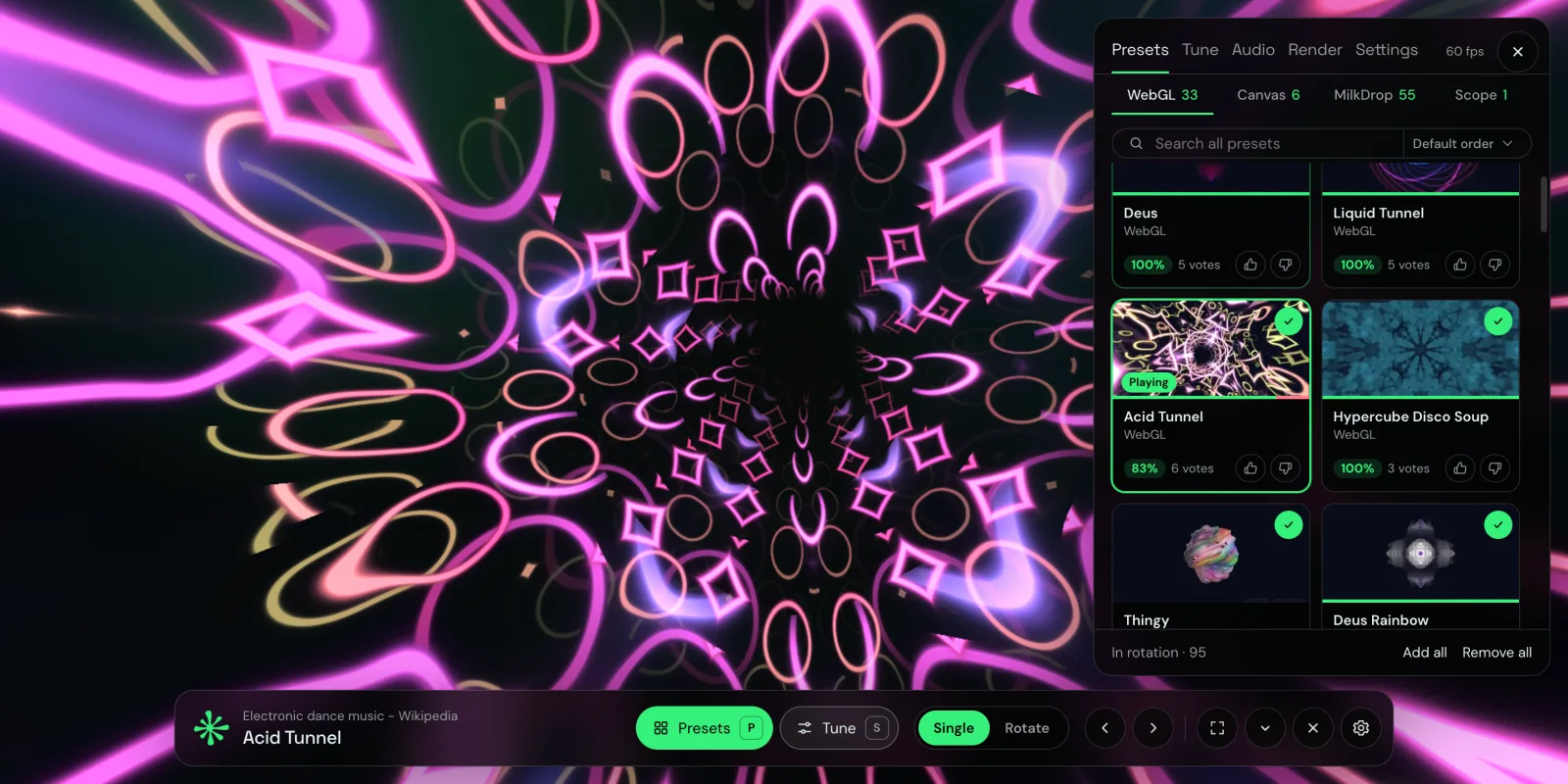
- Choose a preset, or turn on a preset chain to change the visual at different moments of the track.
- Press Render video. You get an MP4 with your audio, ready to upload.
Use a preset chain for long tracks
One visual for five minutes gets boring. A chain splits the track timeline into sections, each with its own preset: drag the switch points to the drop, the breakdown and the outro, and set how long two visuals blend at every switch. Make equal gives every section the same length if you just want variety.
Free or Pro?
Rendering is free, at every resolution and format. Free videos carry a small Deus watermark. Deus Pro, a one-time purchase, renders without it.
Tips
- Shorts: 9:16 at 1080p and 60 fps is plenty. Pick a preset with a strong reaction to bass so the first seconds grab attention.
- Background: render on black, or on the colours of your current Deus theme.
- Oscilloscope music: the XY Oscilloscope preset draws stereo shapes; it's perfect for tracks written for it.
- Retro look: the MilkDrop presets give the classic Winamp feel.
- Streaming music: Deus doesn't record Spotify or YouTube. Render from a file you own; for live visuals while you listen, use the Spotify visualizer.