
Picture-in-picture music visualizer: an always-on-top visualizer in Chrome
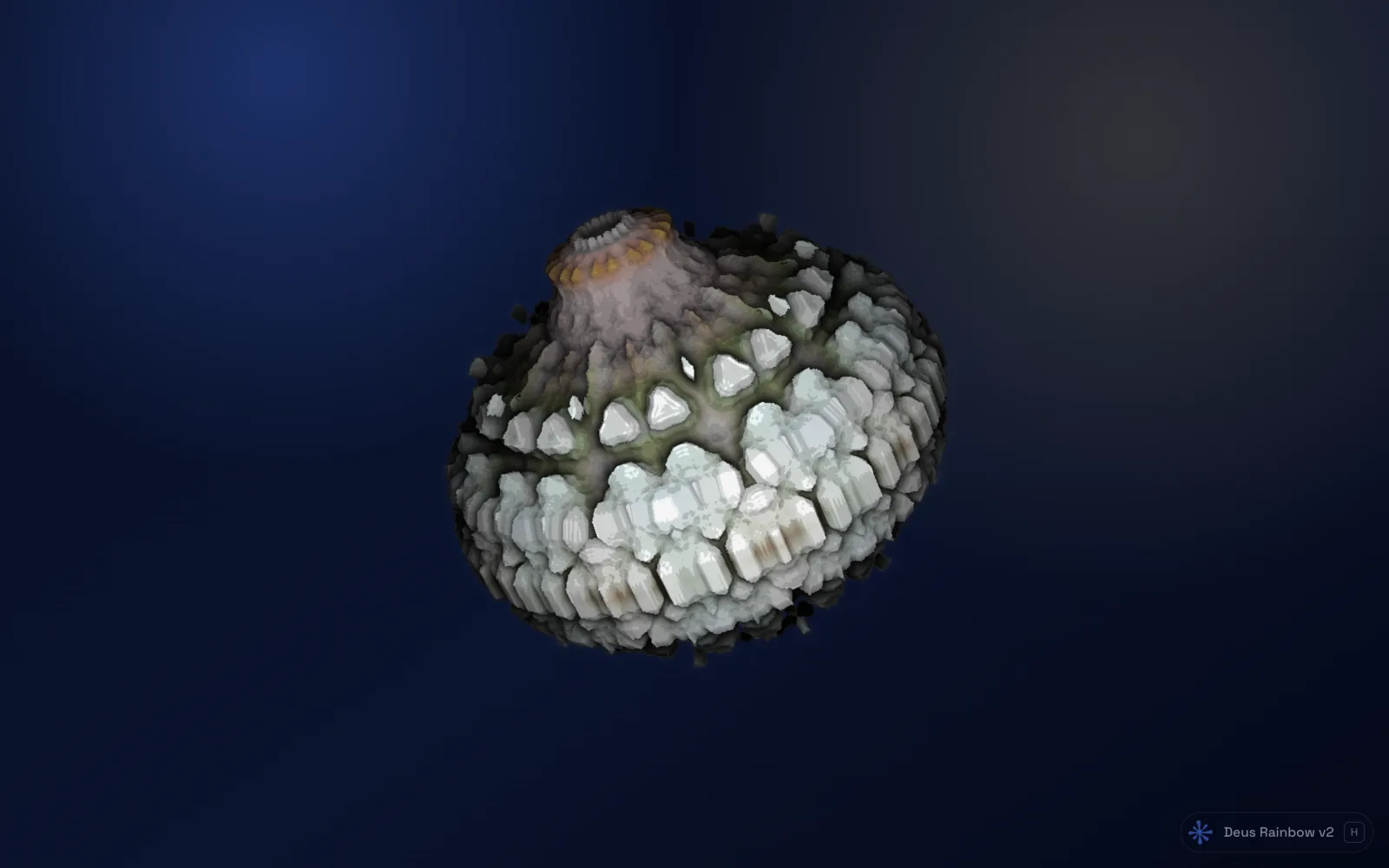
A fullscreen visualizer is great when you are not doing anything else. Most of the time, though, you are: writing code, answering mail, editing a track. What you want then is a small window with the visuals that stays on top of everything, in the corner of the screen, while the music plays somewhere in a browser tab.
Deus has two ways to do that: a picture-in-picture window that floats over your other tabs and apps, and the Pet, a small see-through visualizer that floats over the web page you are on. Both are part of Deus Pro. The rest of Deus, including the visualizer itself, all presets and fullscreen, is free.
What picture-in-picture is
Picture-in-picture is a Chrome feature you may know from videos: a small window that stays above all other windows, even when you switch to another app. You can move it to any corner and resize it. Deus uses it for the visualizer, so the live visual keeps running in that little window while you work in something else.
How to open the visualizer in picture-in-picture
- Play music in a Chrome tab: a streaming service, SoundCloud, a web radio, a YouTube mix.
- Click the Deus icon and choose Visualize this tab. The visualizer opens next to that tab.
- Pick a preset with ← and → or P.
- Press I, or click the Picture-in-picture button on the control bar.
The visual moves into a floating window, and the visualizer tab shows "The visualizer is playing in a floating window." with a Bring it back here button. Press I again, or that button, to return it.
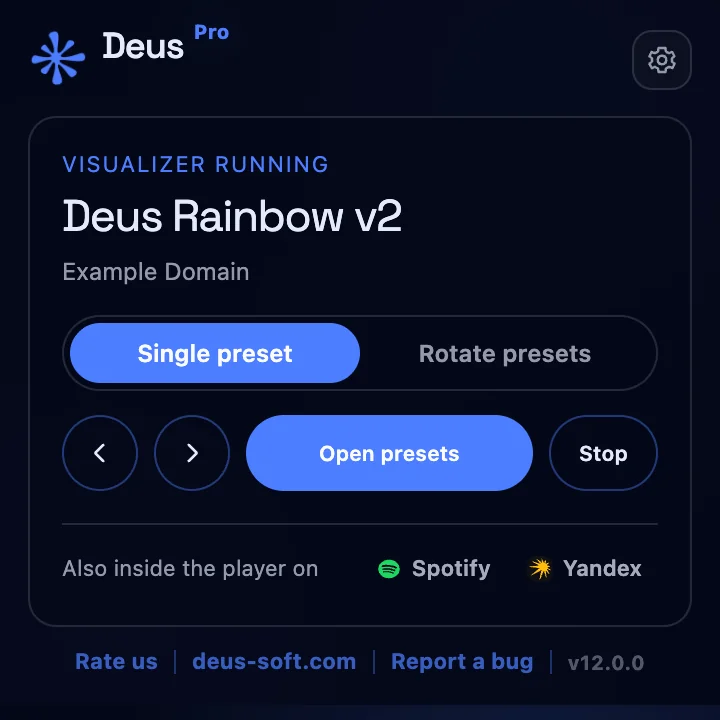
There is also a Picture-in-picture button at the top of the Deus popup. It opens the visualizer and asks you to click once anywhere on the page: Chrome only opens a picture-in-picture window after a click in the page itself.
Tips for a small window
- Choose bold presets. A single centred shape, an orb or a tunnel stays readable at a few hundred pixels. Very detailed scenes turn to noise.
- Mind your computer. If the visuals lag while you work, lower the render quality in Settings, or leave Lower quality automatically on.
The Pet: a visualizer that floats over every tab
The Pet is the second floating option. It is a small, see-through visual drawn on top of the web page you are looking at, and it follows you from tab to tab while the music plays elsewhere. There is no window frame: just the shape, floating over the page.
It has three looks: Oscilloscope, a glowing Orb that breathes with the bass, and Deus v2. On the Pet itself you can:
- drag the ✥ handle to move it, and the corner to resize it;
- switch the look with the ◐ button;
- open ⚙ Pet settings for size, opacity and colour (follow the music or a fixed hue), plus glow, afterglow, bass pulse, kick waves and more, depending on the look;
- turn it off on every tab at once.
To start it, click the Pet button at the top of the Deus popup on a tab that plays sound. The first time, Chrome asks to give Deus access to all sites, so the Pet can appear on the pages you visit. Deus asks only when you turn the Pet on. The Pet adds its own small overlay; it doesn't read page content. It also shares the audio capture Deus is already using, so it doesn't start a second analyzer.
Picture-in-picture or the Pet?
- Picture-in-picture stays on top of other apps too, not only Chrome. Use it when you work in an editor, a DAW or a terminal and want the visual in a corner.
- The Pet lives inside Chrome, over regular web pages. It is see-through and has no frame, so it feels more like a companion on the page than a separate window.
Both need music playing in a regular web tab. Chrome's own pages (chrome://) can't be captured.
Both are Pro
Picture-in-picture and the Pet are Deus Pro features. On the Free plan their buttons say they are available in Pro. Deus Pro is a one-time purchase of $20, not a subscription, and it also adds the live Audio engine panel and videos without the watermark. You can also earn Pro for free: copy your invite link in the extension, and when two friends install Deus from it, Pro is yours.
If you don't need a floating window, the free version already covers a lot: the any-tab visualizer in its own window, fullscreen on a second screen or TV, and live visuals right inside the Spotify and YouTube Music web players.