
Music visualizer on a TV or second monitor: a party screen from Chrome
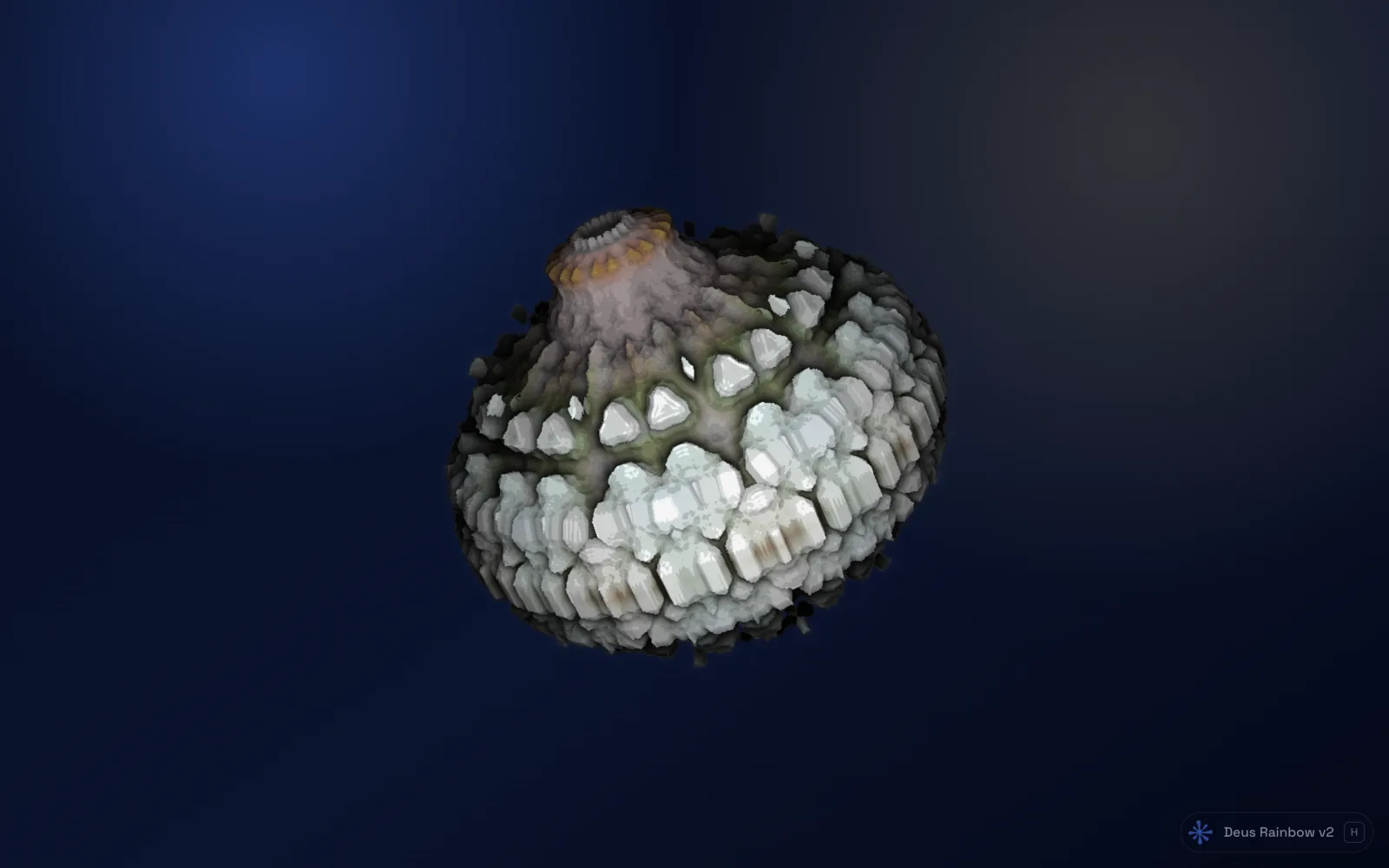
A big screen with visuals that move to the music changes a room. At a party it gives people something to look at besides their phones; on a quiet evening it works as an ambient display, like a fireplace video that actually listens to what is playing.
You don't need special hardware for it. If the music plays in Chrome on a computer that is connected to a TV or a second monitor, you can turn that screen into a party visualizer in a couple of minutes. Here is how to set it up so it runs for hours without anyone touching it.
What you need
- Desktop Chrome with Deus installed (free) and pinned to the toolbar.
- A second display: a TV or monitor connected by HDMI or another cable, set to extend the desktop rather than mirror it.
- Music in a browser tab: Spotify, YouTube Music, SoundCloud, a YouTube mix, a web radio, a Twitch DJ set. Any regular web page that plays sound in a tab works.
Step 1: open the visualizer in its own window
- Start the music in a tab.
- Click the Deus icon. Under where it opens, choose Window: a separate window you can drag to a second screen or TV, while the music tab stays where it is.
- Press Visualize this tab.
Deus analyzes the tab's sound locally in your browser (bass, mids, treble, kicks, snares, hi-hats) and draws the visual in that new window. Nothing is recorded or uploaded. More on how this works in the any-tab guide.
Step 2: move it to the TV and go fullscreen
Drag the visualizer window onto the TV or the other monitor and press F. The window fills that display, and your main screen stays free: you can keep choosing tracks, chatting or browsing while the TV shows visuals.
Two things to keep in mind. The visual follows the tab you started it from, so leave that tab open: if you close it, the visualizer stops. And to visualize a different site, start Deus again from that tab.
Step 3: hide the controls
On a party screen nobody wants to see buttons. The menu at the top and the control bar at the bottom fade out on their own when the mouse is still, and H hides the panel and bar completely. Move the mouse pointer back to your main screen and the TV shows nothing but the visual.

Step 4: let the presets rotate
One preset for three hours gets old. Switch the mode from Single preset to Rotate presets and Deus changes the visual on a timer, going through the presets you picked for rotation. The interval can be anything from 1 to 600 seconds (45 by default), and Shuffle order plays them in random order.
In the Presets panel you can add presets to the rotation one by one or a whole category at once. The catalog has WebGL shader scenes, Canvas 2D geometry, classic MilkDrop presets and an XY oscilloscope, and you can sort by community rating to start from the favourites. For a party, a mix of bright, fast presets with a 30–60 second interval works well; for an ambient screen, pick calmer scenes and a longer interval.
Step 5: set the Quality for a big screen
Visuals are drawn by your graphics card, and a large fullscreen window is more work for it than a small one. The Quality chip on the visualizer's bar shows how the current preset runs, with the live frame rate, and lets you choose High, Medium or Low. Deus can also lower the quality by itself when a preset lags.
If the motion on the TV looks choppy, try Medium first: on a screen you watch from the sofa, smooth movement matters more than the last bit of sharpness. Some scenes are heavier than others, so if one preset struggles, take it out of the rotation.
No cable? Casting with Chrome
If the TV has Chromecast or Google Cast built in, Chrome's own Cast option (in the ⋮ menu; in recent versions it sits in a submenu next to the save and share options) can send a tab or your whole screen to it. This is a Chrome feature, not part of Deus, and it streams the picture as video, so expect a short delay and less smoothness than a cable. The music itself keeps playing from the music tab on your computer, so the speakers should be connected to the computer. A wired connection is the most reliable choice for a party; casting is fine for a relaxed ambient screen.
On Spotify, YouTube Music, Yandex Music, SoundCloud, Deezer and Apple Music
These players also have Deus built into the page, with a fullscreen view that shows the track and preset names and previous / play-pause / next buttons. For a TV in its own window, though, the any-tab visualizer described above is the simplest: the popup's classic Deus button opens it for the player tab too. See the Spotify and YouTube Music guides.
Is it free?
Yes. The any-tab visualizer, fullscreen, preset rotation and all presets are free with no time limit and no account. If you want the party in a video afterwards, Deus can also render a music video from your own audio file.