
Spotify for a party: shared queue, phone remote and visuals on the TV
A good party playlist is half the job. The other half is how it plays: who controls the music, whether guests can add their songs, and what the big screen in the room shows. Most people end up with a phone on the speaker and a TV showing a screensaver. With Spotify and a laptop you can do better, in about ten minutes.
The setup
- A laptop with Chrome, connected to the TV by HDMI (or casting its screen to it).
- Sound from the TV or from speakers connected to the laptop.
- The Spotify web player, open.spotify.com, playing on the laptop.
- Your phone as the remote.
The key idea: the music plays in the browser on the laptop, not on your phone. That way the laptop can show visuals for the exact sound the room hears.
Step 1: prepare the music
Make one long playlist, or start from a few of yours and let Spotify continue with similar songs when it runs out. If guests should add songs, use a collaborative playlist, or start a Jam: Spotify's shared listening session where people nearby add tracks to one queue from their own phones. Starting a Jam needs Spotify Premium.
Step 2: play on the laptop, control from the phone
Start the music in the web player on the laptop. Then open Spotify on your phone: in the device list it shows the web player as a device you can control. Pick it, and your phone becomes a remote: skip, change the volume, add to the queue, while the sound still comes from the laptop.
Avoid the opposite. If you pick the speaker or the phone as the playing device, the laptop's tab goes silent, and anything that reacts to the music on the TV stops reacting.
Step 3: put live visuals on the TV
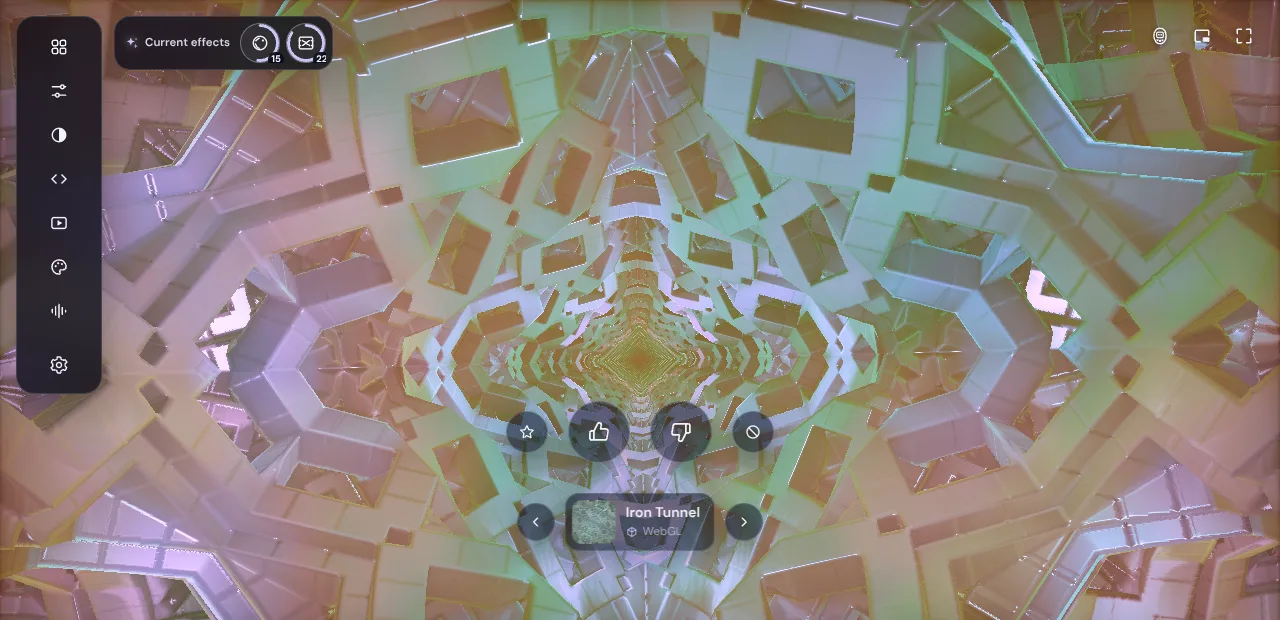
Deus is a free Chrome extension that turns the sound of the Spotify tab into visuals that move with the bass, the drums and the vocals.
- Install Deus from the Chrome Web Store and pin it to the toolbar.
- On the Spotify tab, click the Deus icon, or press Alt+M (⌃+M on a Mac). A visual appears behind the Spotify page.
- Press the ⛶ button at the top of the popup. The visual fills the TV, with the track card showing what's playing.
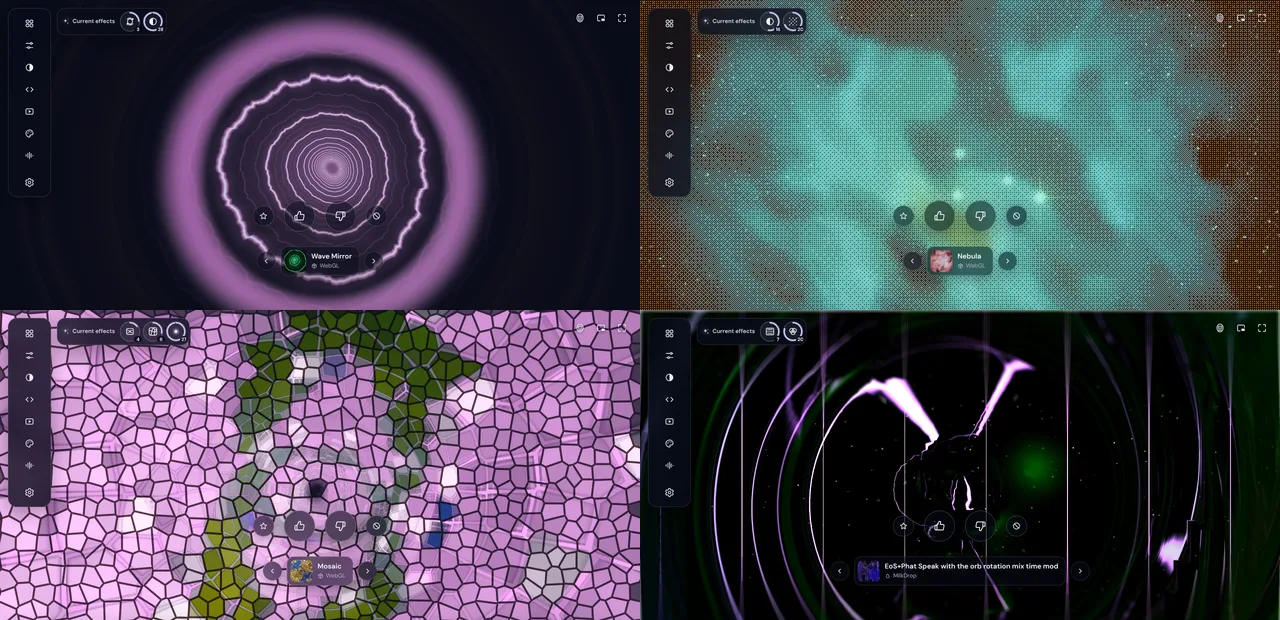
For a party, use Magic. It's a hands-off show: a new preset every 12 seconds, colours that keep drifting, filters that come and go by themselves. Nobody has to stand at the laptop, and the screen never settles into one picture for long. The Magic mode guide explains how it picks what to show.
Step 4: make it last the night
- Turn on Fewer flashes in the ⋯ menu of the Deus player. It smoothly dims fast flashing, which is kinder to guests' eyes on a big screen.
- Pick a quality the laptop can hold. The Quality button in the bottom bar shows the frame rate; on an older laptop choose Medium or Low, or leave automatic quality on.
- Keep the laptop plugged in and stop it from going to sleep.
- Don't close the Spotify tab. Deus listens to that tab; the visual follows the music only while it plays there.
More on cables, casting and big-screen settings is in the visualizer on a TV guide.
Questions
Does it work with Spotify Free?
The visuals do: Deus reacts to whatever the web player plays, on Free and Premium alike. Some Spotify features, like starting a Jam or skipping freely, depend on your Spotify plan.
Can the visuals run from the Spotify app on the TV?
No. Deus is a Chrome extension and can't draw inside TV, phone or desktop apps. The music has to play in the web player in Chrome on the laptop.
Is it free?
Yes. The visualizer, full screen, Magic and all presets are free, with no time limit and no account.
Deus is an independent extension and is not affiliated with Spotify.