
Spotify full screen: fill the screen with the music, not just the cover
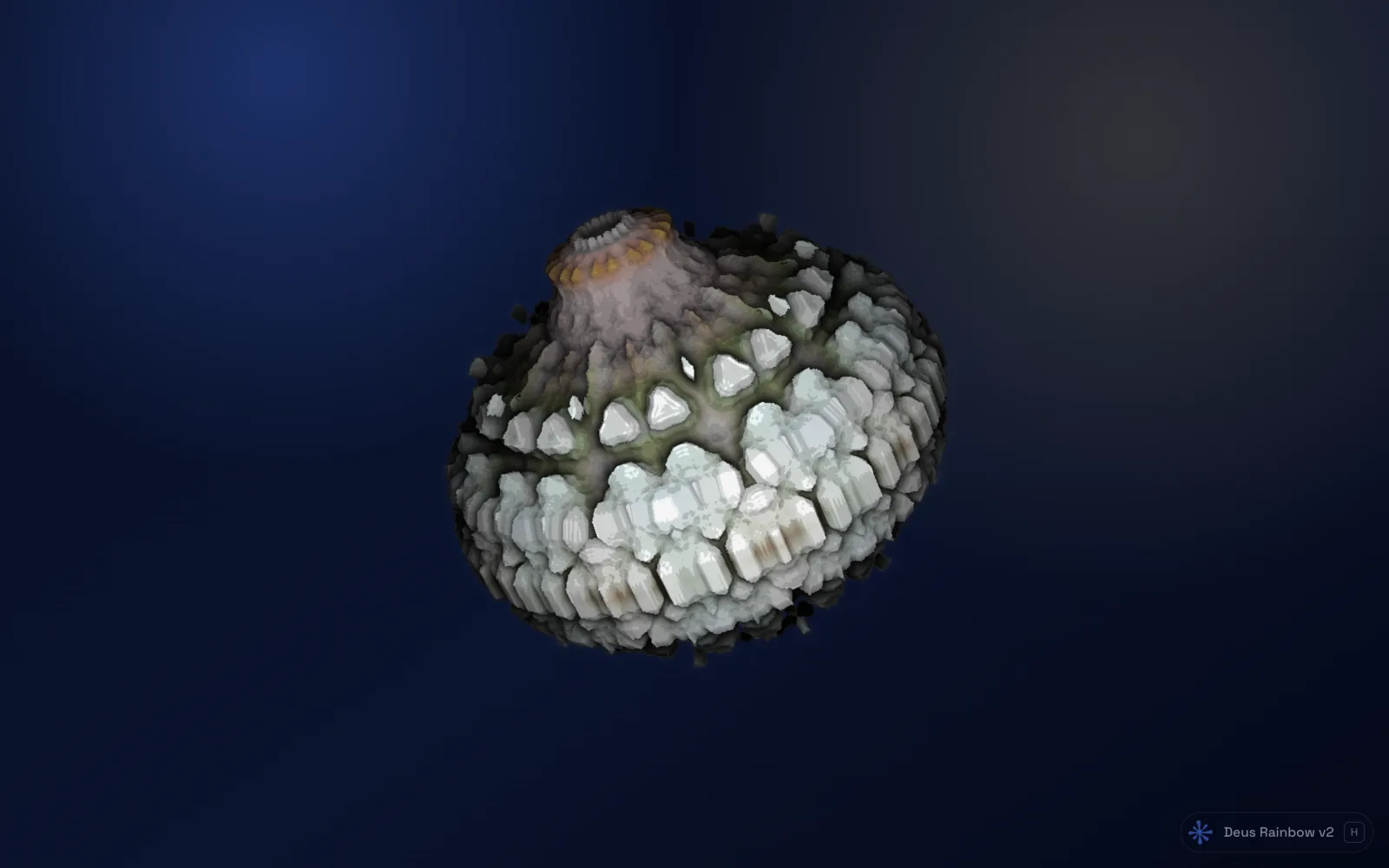
Put Spotify on full screen and you get a large album cover, the track name and the controls. It looks fine for a minute, but it never moves with the music: the cover is just as still during a drop as during a quiet intro. If you want the whole screen to move with the beat, on your monitor, on a second screen or on a TV, you need a visualizer.
This guide covers the full-screen options Spotify itself has, what pressing F11 in Chrome does and doesn't do, and how to fill the screen with live visuals from the Spotify web player.
Spotify's own full-screen view
The Spotify desktop app and the web player at open.spotify.com both have a full-screen button in the player bar, at the bottom right. It hides your library and the side panels and shows the cover art of the playing track, large, with the track name and the playback controls. Press Esc to leave it.
That view is made for glancing at what's playing from across the room. It is static by design: the picture is the cover, and it changes only when the track changes.
Chrome full screen (F11) is not the same thing
Pressing F11 on Windows, or ⌃+⌘+F on a Mac, makes the Chrome window fill the screen. It hides the tabs and the address bar, but the page inside stays the same: the Spotify web player with its sidebar, lists and buttons, just bigger. It is useful if you want more room for your library, not if you want something to look at.
Full screen with visuals that follow the music
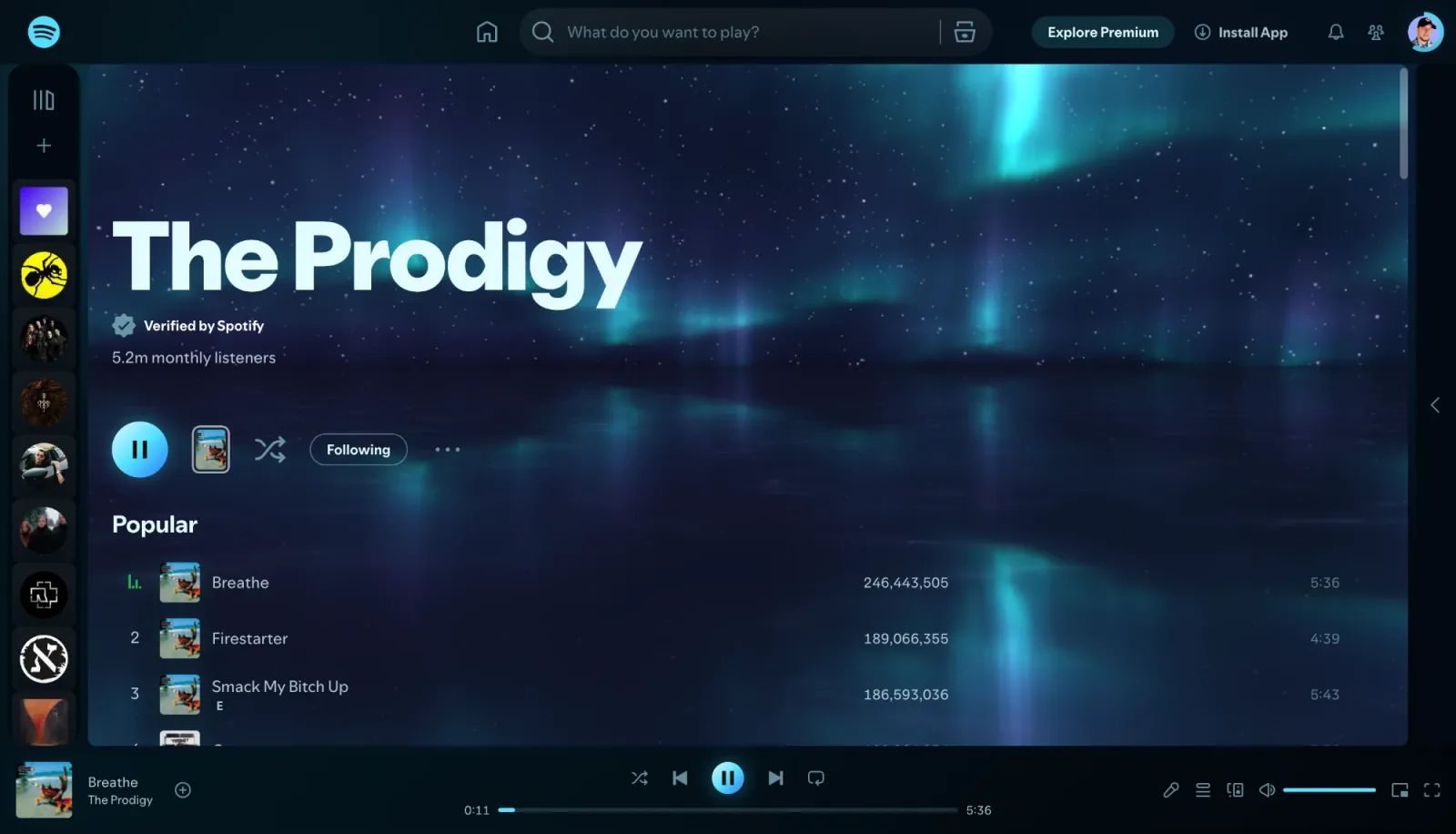
Deus is a free Chrome extension that listens to the sound of the Spotify tab and draws live visuals from it. Its full-screen mode replaces the cover with a visual that reacts to the bass, mids, treble and the beat of whatever is playing.
- Install Deus from the Chrome Web Store and pin it to the toolbar.
- Open open.spotify.com in Chrome and start a track.
- Click the Deus icon on that tab, or press Alt+M (⌃+M on a Mac). Chrome needs this one click before an extension can hear a tab. A visual appears behind the Spotify page.
- Press the ⛶ button at the top of the Deus popup. The visual fills the screen.
In full screen you still control the music: previous, play/pause and next are on the screen, and the track card shows what's playing. Esc or ✕ brings Spotify back.
What to put on the screen
- Magic if you don't want to choose. It's a hands-off show: a new preset every 12 seconds, colours that keep drifting and filters that come and go by themselves. The Magic mode guide explains how it works.
- One preset if you have a favourite. Switch with ← and → until you find it, then keep it on screen.
- Rotate to cycle through the presets you picked, every 45 seconds by default, with shuffle.
There are more than 1,100 presets: shader tunnels and landscapes, clean Canvas geometry, classic MilkDrop scenes and an XY oscilloscope. All of them are free.
On a TV or a second screen
Connect the laptop to the TV with an HDMI cable, or cast the whole screen, then go full screen from the popup. The music keeps playing in the Spotify tab, so the TV shows the visual and the speakers play the track. The guide to a visualizer on your TV covers cables, casting and sound in more detail.
If the visual is meant to run for hours, open the ⋯ menu in the Deus player and turn on Fewer flashes, which smoothly dims fast flashing. On a laptop that runs warm, pick Medium or Low quality in the bottom bar.
Questions
Does it work in the Spotify desktop app?
No. Deus is a Chrome extension, and extensions can't draw inside desktop apps. Play in the web player while you want visuals; your library, playlists and Premium are the same there.
Spotify is playing, but the full-screen visual doesn't move.
The music is probably playing on another device: your phone, a speaker or the desktop app. In the web player, open the device menu next to the volume control and pick this browser. The help page has this and the other common causes.
Is full screen free?
Yes. The visualizer, full screen and all presets are free, with no time limit and no account. Deus Pro is a one-time purchase for extras like picture-in-picture and video export without a watermark.
Deus is an independent extension and is not affiliated with Spotify.