
Music visualizer for YouTube Shorts, TikTok and Reels: vertical 9:16 clips
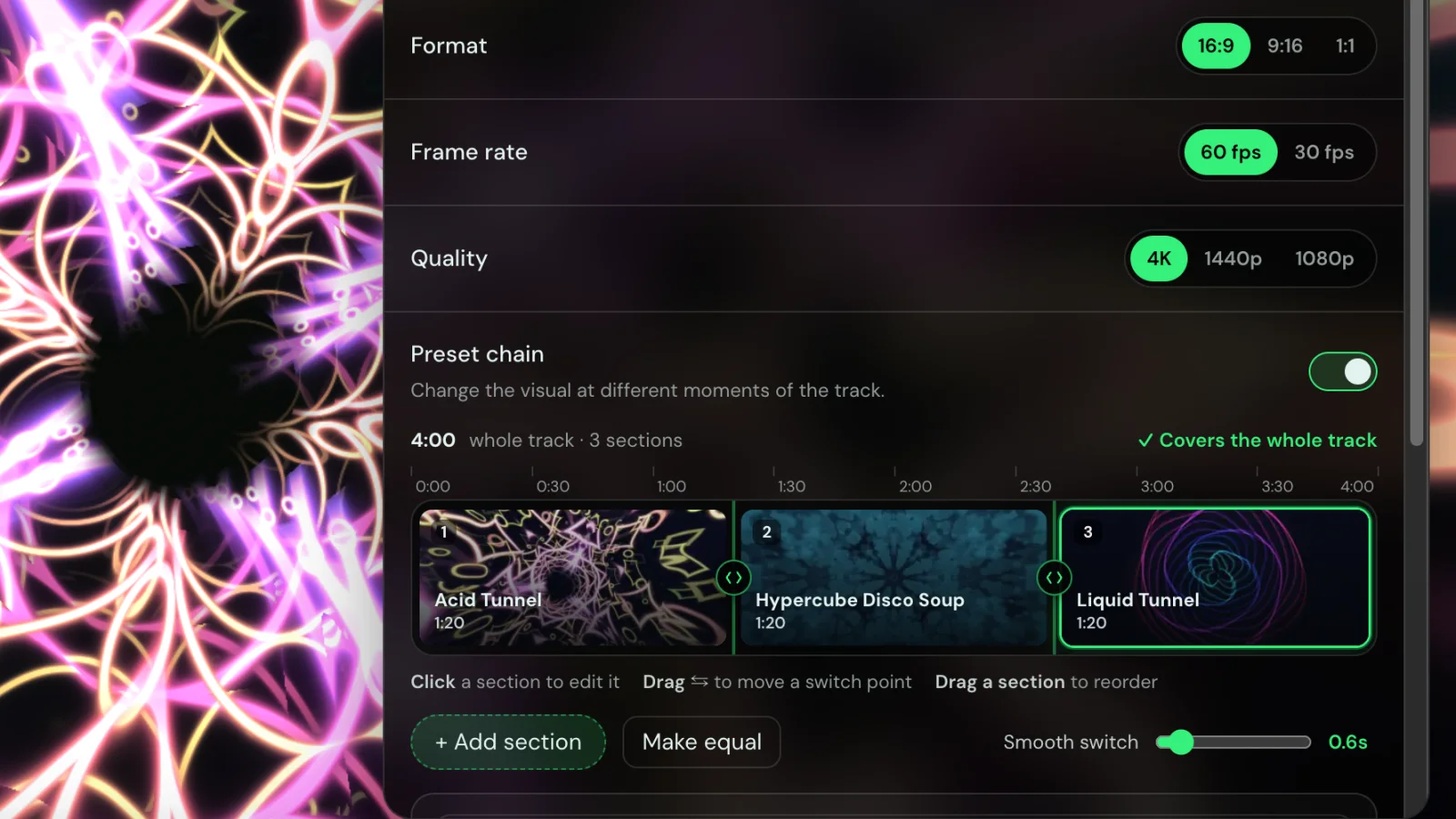
A full-length visualizer video and a short vertical clip are different jobs. On YouTube a 16:9 video can take its time. In a Shorts, TikTok or Reels feed, people decide in the first second or two whether to keep watching, the screen is tall and narrow, and the clip is a fraction of the song. This guide is about that second job: turning the best part of your track into a vertical clip that moves with the music from the very first beat.
Everything below happens in Chrome with Deus, a free extension, using an audio file you own. If you want a full-length 16:9 video for a YouTube upload, see how to make a music visualizer video for YouTube instead.
1. Cut the hook before you render
Deus renders the whole audio file you give it. For a short clip, that means the editing happens first: open the track in any audio editor and export only the part you want people to hear.
- Start right before the payoff. The drop, the chorus, the riff people hum. One bar of build-up is enough; a long intro is where viewers scroll away.
- Start on a beat. Cut a few milliseconds before a kick drum so the first frame already has something to react to.
- End cleanly. A short fade-out, or a cut at the end of a phrase, so a looping clip doesn't click.
Check the current length limits of the platform you post to; they change, and a shorter clip is usually the safer bet anyway.
2. Find a preset that hits hard on the bass
Every Deus preset reacts to bass, mids and treble, and to kicks, snares and hi-hats separately. But some go wild on a kick and some drift calmly, and for a short clip you want the first group. The quickest way to find out is to watch them with your own track:
- Play your hook in any Chrome tab (open the audio file in the browser, or play it from wherever you host it).
- Click the Deus icon and choose Visualize this tab.
- Flip through presets with ← and →, or open the catalog with P and sort by Top rated.
- Note the ones where the first kick is obvious. S opens Tune, where many presets let you change colours, speed and how hard they react to the beat.
Things that work well on a phone screen: shapes centred in the frame (tunnels, orbs, kaleidoscopes), high contrast, and strong colour. Fine detail at the edges gets lost under the platform's buttons and captions.
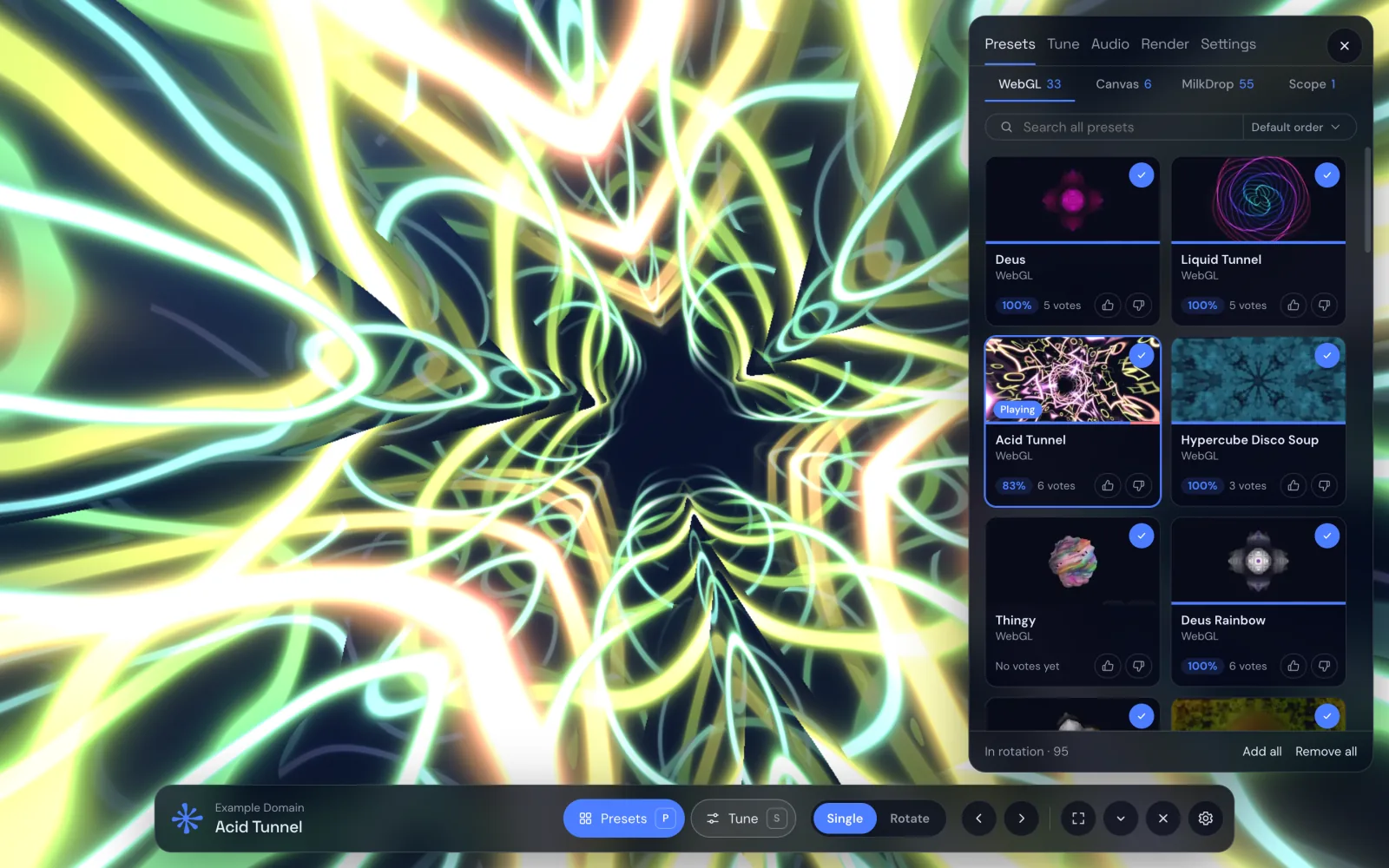
3. Render in 9:16
- In the visualizer, open Render… from the menu at the top left.
- Under Track, choose the hook you exported. The file stays on your computer; the video is rendered on your device.
- Set Format to 9:16.
- Pick Quality: 1080p, 1440p or 4K. 1080p is the safe default for vertical clips and renders fastest; go higher if you plan to crop or edit the clip further.
- Pick a Frame rate: 30 or 60 fps. 60 fps makes fast tunnels and flashes look smoother on a phone.
- Choose the Background: Black, or Theme to use the colours of your current Deus theme.
- Press Render video, then choose where to save the MP4 in the export window. If Chrome blocks that window, allow pop-ups for Deus and try again.
4. A preset chain, even for 20 seconds
A preset chain is usually pitched at long tracks, but it works for short clips too. Turn on Use a preset chain and split the timeline into two or three sections: a calmer visual for the build-up, then a switch exactly on the drop. Drag the switch point to where the drop lands and set Smooth switch to Off or a very short blend, so the change hits at the same moment as the beat. A cut on the drop is one of the simplest ways to make a short clip feel edited.
5. Make a few versions
Short-form feeds reward testing. Rendering is local and free, so it costs only time to make the same hook with two or three different presets, or with a black background and a theme background, and see which one keeps people watching. The same 20 seconds can also go out as a 1:1 post.
Free or Pro?
Vertical rendering is free, at every quality and frame rate. On the Free plan, videos carry a small Deus watermark. Deus Pro, a one-time purchase, renders without it.
What Deus doesn't do
- It doesn't record Spotify, YouTube or other streaming services. Render from an audio file you have the right to use.
- It doesn't upload or post the clip for you. You get an MP4 to upload yourself.
- It doesn't add text, lyrics or captions. Add those in the platform's own editor or in a video editor.
More ideas
Tracks written for an oscilloscope look striking in a tall frame with the XY Oscilloscope preset. For a retro look, try the MilkDrop presets. And if you write shaders, Deus Studio can preview your own preset in 9:16 before you render it.
Deus is an independent extension and is not affiliated with YouTube, TikTok or Instagram.