
Music visualizer for OBS: a live background for Twitch and YouTube streams
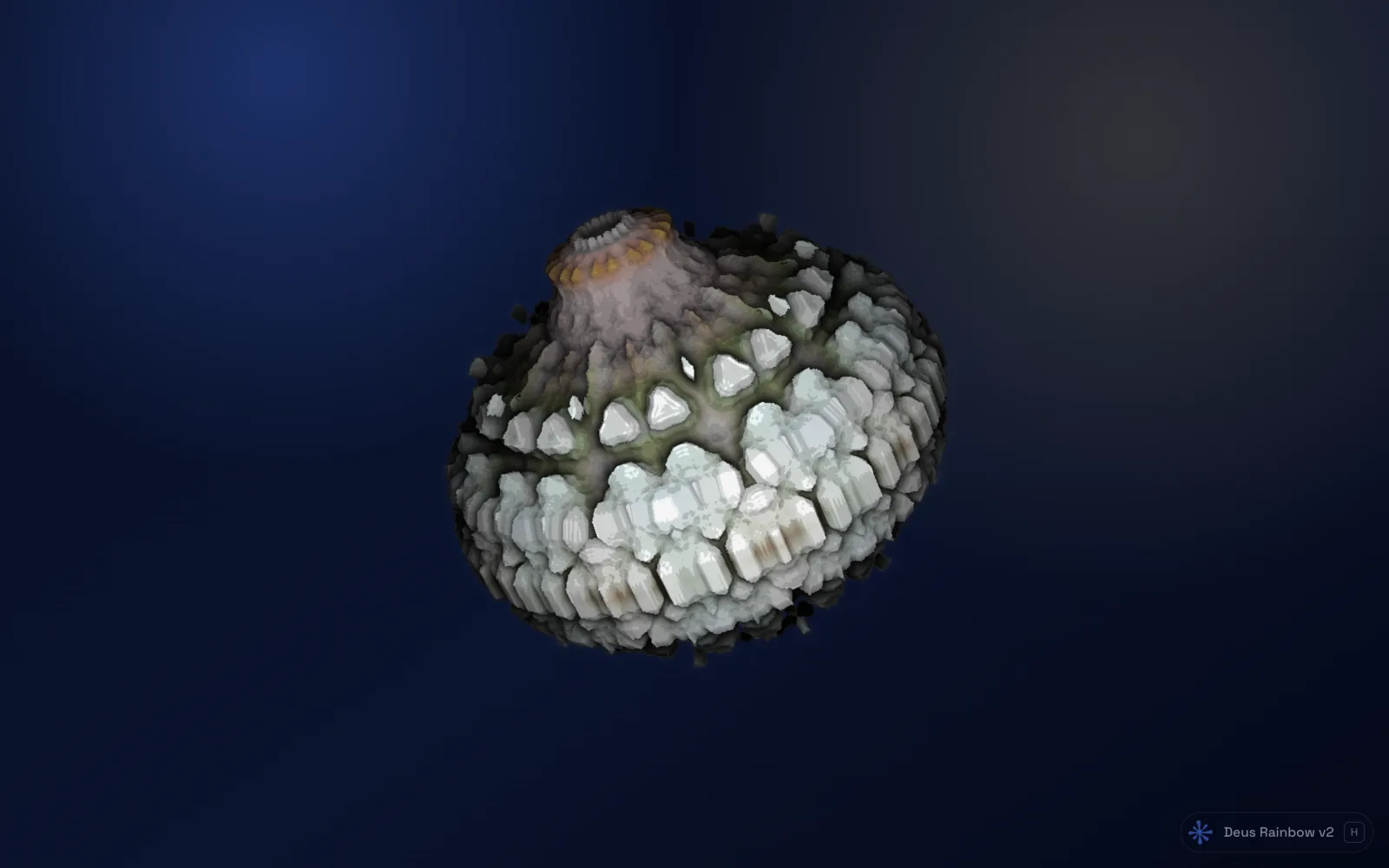
A music stream with a static picture looks empty. A visualizer that moves with the sound fills the screen during a DJ set, a listening party, a "just chatting" break or a starting-soon scene, and it costs your viewers nothing to look at.
You don't need a special plugin for this. If the music plays in a Chrome tab, you can open a visualizer in its own window and capture that window in OBS like any other app. Here is the setup.
What you need
- OBS Studio (or another streaming app that can capture a window).
- Chrome with Deus, a free extension that turns the sound of any tab into live visuals.
- The music playing in a Chrome tab: SoundCloud, Mixcloud, a web radio, YouTube, a web player.
One limit to know up front: Deus listens to a Chrome tab. It does not hear your microphone or desktop programs such as DJ software, so the music that drives the picture has to play in the browser.
Step 1: open the visualizer in its own window
- Start the music in a tab.
- Click the Deus icon, choose Window and press Visualize this tab.
- Resize the new window to the shape of your stream (16:9), or drag it to a second monitor and press F for fullscreen there.
The source tab keeps playing in your main window. If you close it, the visualizer stops, so keep it open for the whole stream. The full walkthrough is in how to visualize any tab.
Step 2: add it to OBS with Window Capture
- In OBS, select the scene you want, click + under Sources and choose Window Capture. On macOS, recent OBS versions use macOS Screen Capture with the method set to a window.
- In the Window list, pick the Chrome window with the visualizer.
- On Windows, if the capture is black, set Capture Method to Windows 10 (1903 and up). Chrome draws with the graphics card, and the older method often can't see it.
- Right-click the source, choose Transform → Fit to screen, and drag it below your webcam and overlays in the source list so it sits in the background.
Your stream audio does not come from this source. OBS keeps taking sound from your desktop audio or mixer as before; the window capture is only the picture.
Step 3: hide the controls
Press H in the visualizer. It hides the panel and collapses the control bar, and the rest of the interface fades on its own when the mouse rests. Move the mouse away from the window before you go live. If the small label in the corner still bothers you, crop that edge in OBS (hold Alt while dragging the source edge on Windows and Linux, Option on a Mac).

Step 4: let it change on its own with Rotate
Nobody wants to click through presets in the middle of a set. Switch the bar from Single to Rotate and Deus changes presets on a timer: any interval from 1 to 600 seconds (45 by default), with shuffle and a countdown to the next switch. In the preset panel (P) choose which presets take part, one by one or a whole category at once, so the rotation only holds looks that suit your channel.
A few ideas for picking them:
- Electronic and DJ sets: WebGL tunnels, terrains and fractals.
- Retro or rave nights: classic MilkDrop presets from the Winamp era.
- Chill or lo-fi streams: calmer Canvas 2D geometry or slow particle scenes.
- Oscilloscope music: the XY oscilloscope draws the stereo signal itself.
The catalog has community ratings, so sorting by rating is a quick way to find presets that look good on a big screen.
Themes for the moments the interface shows
71 themes restyle the panel and the control bar, from light ones to dark ones like Blood Moon, Neon Pink and Synthwave. On a stream the interface is usually hidden, but if you show yourself picking presets on air, choose a theme that matches your channel colours. Chameleon takes its colours from an image you choose or from the playing preset.
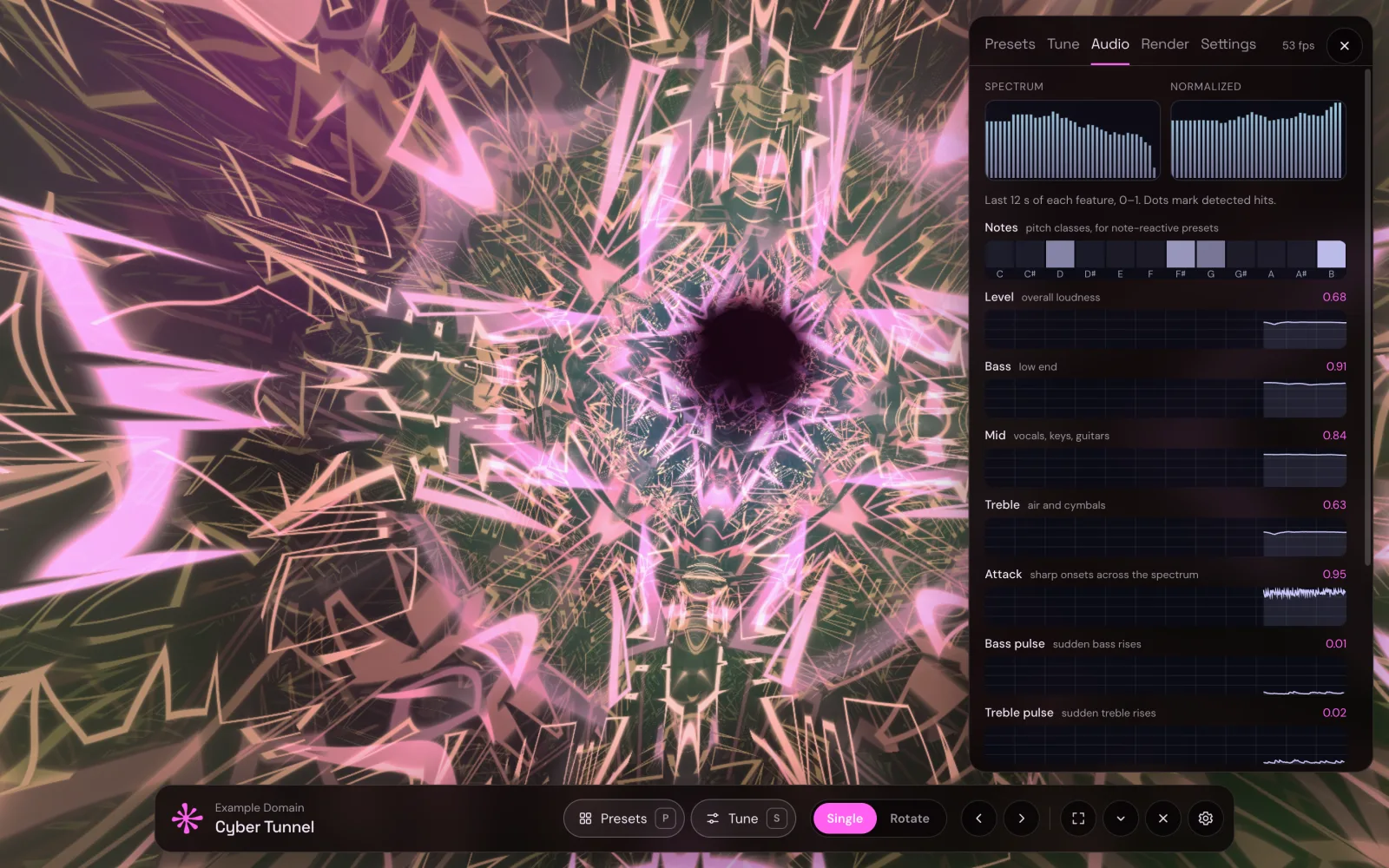
Keep it smooth on the streaming PC
- Don't minimize the visualizer window. Deus stops drawing while the visual is hidden, and OBS can't capture a minimized window anyway. A second monitor is the easiest place for it.
- Watch the GPU. The game, the encoder and the visualizer share one graphics card. If frames drop, pick Medium or Low on the Quality chip in the bar, or a lighter preset.
- Stream music you have the rights to. Twitch and YouTube act on copyright claims, and a visualizer doesn't change that.
Clips after the stream
For highlights and uploads, Deus can export a video of any preset over an audio file from your computer, up to 4K and 60 fps, and you can cut vertical clips for Shorts. Curious why the picture jumps on every kick? Read how music visualizers work.
The visualizer, Rotate, themes and all presets are free, with no account and no time limit.
Deus is an independent extension and is not affiliated with Twitch, YouTube or OBS Studio.